
Tap the slide to fill your screen. Turn your phone sideways for a bigger view.
It goes on the wall now, so the room can upvote it before Chris takes questions.
Chris is taking questions live.
Ask yours and upvote the ones you most want answered. They rise on the screen.
Sorted by upvotes, and that is the order I answer them in. Tap ▲ Upvote to move one up my list.
The talk ends. The room doesn't.
I'm Chris Courneen. Global business executive and SVP of HR (CHRO) at MSI, board member, writer, and the one who built this app. Same person here as on stage.
What this is. If you were in the room for one of my talks, it's yours. Take what's useful, add what you know.
Post a question or an idea. The room answers, which is half the value of being here, and so do I, pinned at the top of the thread. Nothing resets between events, so what got asked in Indianapolis is still here in March.
When I'm on stage, this room goes live. A Join live tab appears at the top. Tap it and you're in the presentation: my slide on your phone, polls to answer as they open, questions to ask, upvote and answer, live on the screen behind me.
I'm on stage right now. Tap Join live at the top and you're in the presentation: my slide on your phone, polls to answer, questions to ask, upvote and answer, live on the screen behind me. Turn your phone sideways for full screen.
House rule: ideas travel, names don't. Post with your name or stay anonymous, whatever lets you say the real thing.
Tools & takeaways, yours to keep
More resources are added after each talk. Check back.
🔔 Notifications
Add The Green Room to your home screen
One tap on your home screen: the resources, the boards, and announcements, opening full-screen like an app. No browser bar, no bookmark to dig for. Takes about fifteen seconds, and once it's on there you never have to come back to this page to get in.
Do this part on your phone or iPad, not a computer. On a desktop right now? Text yourself this link so you have it on your phone: chriscourneen.com/thegreenroom/
iPhone & iPad Your device
You have to be in Safari for this. Not Chrome, and not a browser inside another app, or the Add to Home Screen option simply will not be there.
Tap the ••• button next to the address bar. If your toolbar already shows a Share icon, a square with an arrow pointing up, tap that and skip to step 3.
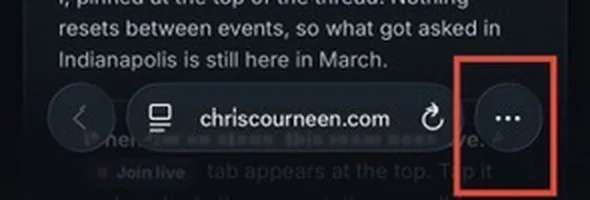
Tap Share.
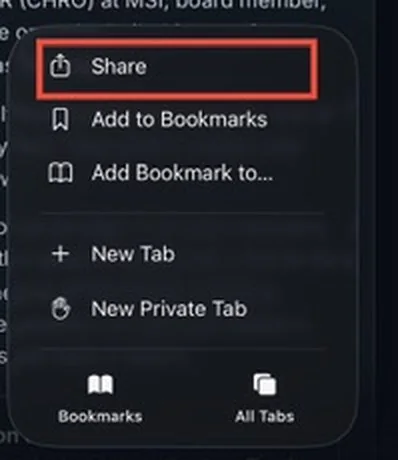
The share sheet opens showing only a few options. Tap View More to see the rest.
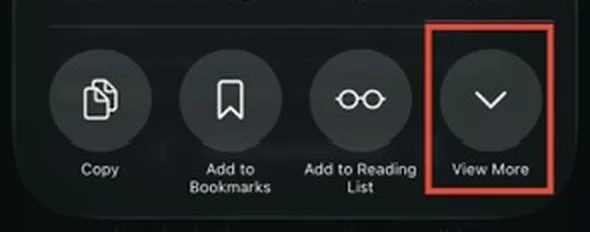
Tap Add to Home Screen.
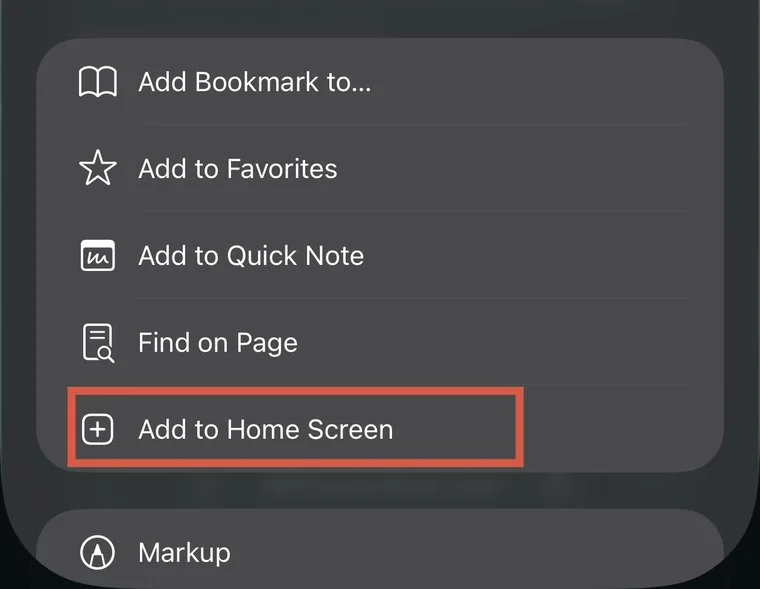
Leave Open as Web App switched on, which is what makes it launch full screen instead of back inside Safari, then tap Add in the top right.
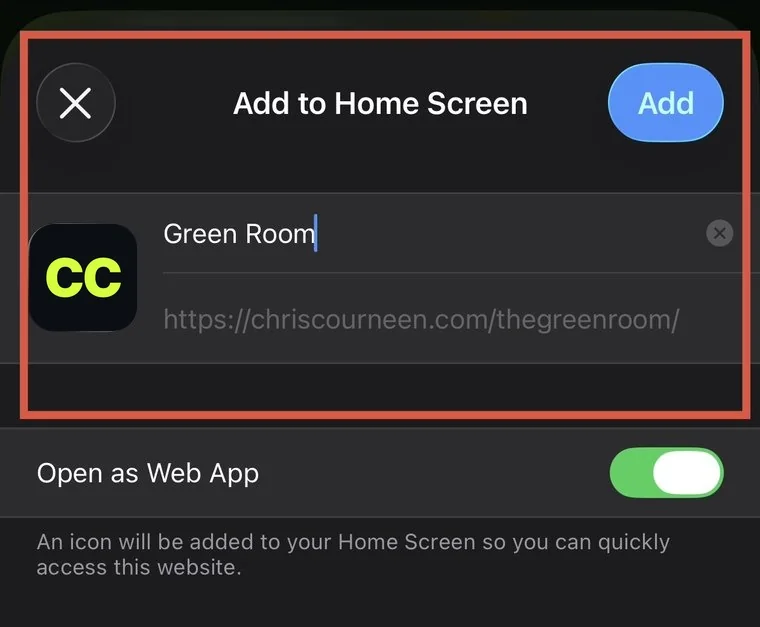
Open it from the new icon, then tap Allow when it asks about notifications, so you hear back on your questions and don't miss announcements.
Android Your device
Open chriscourneen.com/thegreenroom in Chrome.
Chrome often offers to install it on its own. If a bar slides up from the bottom asking to install, tap it and you are done. If nothing appears, carry on.
Tap the ⋮ menu. It sits in the top right, unless you have moved Chrome's address bar to the bottom of the screen, in which case look bottom right.
Tap Add to Home screen. Some versions of Chrome name this Install app and take you straight to the next step.
Check it says Green Room, then tap Install, which on some versions reads Add.
Open it from the new icon, then tap Allow when it asks about notifications.
On iPhone, notifications work only from the installed app (iOS 16.4 or later), so add it to your home screen first, then open it from the new icon to turn them on.
Post anonymously, or add your name, your call. Upvote the ones you most want answered: that is how I decide what to take first.
Sorted by upvotes, and that is the order I answer them in. Tap ▲ Upvote on any question to move it up my list.
This is the room's board. Post with your name or stay anonymous. Share what you're building and give a 💡 to what resonates.
Admin: you're signed in as host
Presentations
Everything about one talk lives in its card: which deck the shared chriscourneen.com/present link opens, that talk's polls, which slide each poll runs on, and its results. Give the AV team the one address and change what it opens from here. Talks with slides appear on their own. Add one by hand only for a session with no slides.
Add a session with no slides
You will rarely need this. Every talk with a deck appears above on its own, pulled from the deck folder. Use this only for a session that has no slides at all, a panel or a fireside chat, so it can still carry polls and its own question board. Adding one here does not create slides.
Live screen (no slides)
Open the live screen on the projector, then drive it from your phone here. Use the 📺 Feature on screen button on any question to put it up big under “Now answering.”
Takes the room out of Live on every phone at once: clears the slide, any open poll, and the question wall. Use it when a talk is over and something is still showing, or when the deck was closed without standing down.
All questions
Write a question, then Open it during your talk. Multiple choice shows live bars, open-ended shows answers as bubbles, and a word cloud grows each word as the room repeats it. Copy slide link gives you a URL to embed in a PowerPoint slide (Web Viewer add-in), or just keep the live screen open in a browser.
No talks here yet. Open your deck at /present/ once and it will file itself, or add one by hand under Presentations. You can always file a poll later, from its own row in the list below.
Send a notification
Posts to everyone's Notifications tab instantly. If push is set up, it also sends a phone notification to people who enabled it.
Event banner
The bar across the top for the current conference. Leave the name blank to hide it.
Passcode
The code people type to enter. Changing it re-locks everyone until they enter the new one.
Resources
The cards on the Resources tab. Add, edit, reorder, or remove them.
Manage questions
Every question on the board, newest first. Delete removes it for everyone, whether or not it's currently on the live screen.
Test questions
Drops in three throwaway polls so you can rehearse the live loop end to end. Between them they exercise every way a poll can render: a four-option vote, a two-option vote, and an open-ended one that puts answers on screen as bubbles. They arrive as drafts, so the presenter opens them when you land on the slide, exactly like a real one.
Clear notifications
Empties the notification bell for everyone, on every device, straight away. Nothing is deleted: questions, ideas and announcements all stay exactly where they are, they just stop showing up as notifications. Anything you post after this still comes through.
Phone notifications that already arrived cannot be pulled back. This clears the in-app bell, not a banner sitting on someone's lock screen.
Permanently removes every announcement you have sent. Use this only if you want the records gone, not just hidden.
Clear the boards
Wipe all questions or all ideas, useful between events (The Green Room is evergreen by default).